Custom Shopify – NSB Guide

by thesneakerscroll@gmail.com


NSB Guides

NSB supports any website that is Shopify.

A “Custom Shopify” task lets you cop from a website that is not listed under our sitelist, but that it is in fact Shopify.


How To Check If A Site Is Shopify

  1. Enter the website in the search there, if it shows Shopify in the e-Commerce section of the results, then you’re good to go.


How To Create A Custom Shopify Task

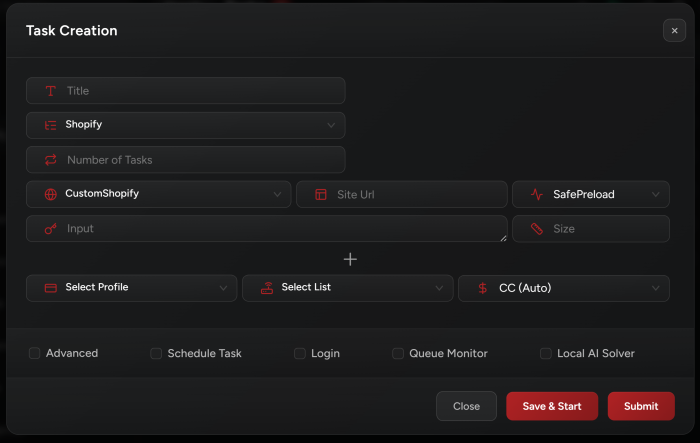
  1. Create a task in the Tasks tab.

  2. Choose “CustomShopify” from the sitelist.

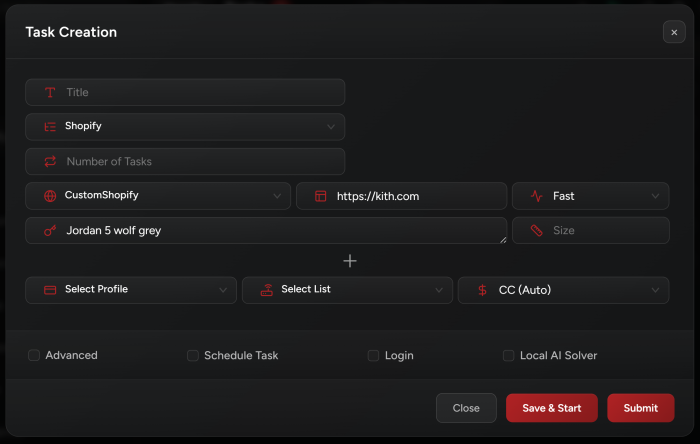
  3. Where it says “Site Url” this is going to be the domain page of the website, or the “homepage”. For example, https://kith.com/.

  4. Next you want to either decide if you are going to be running “keywords” or an “early link” and pick which fits you best depending on what information you have on the product. The “Input” box would be used for a link to the actual product or an early link where the product has not been loaded yet.

  5. From here fill out the rest of your information needed to cop. Keep in mind that NSB will only pick up newly loaded items on a website. So if your keywords are not picking up this could be the reason!


Setup Example


Adding Your Own Custom Shopify Site

You may add your own Custom Shopify sites in the Settings tab to be permanently saved to your NSB. In this case you will be able to create tasks using those sites.

You can check more details in My Shopify Sites section in the Settings guide.


Post Views: 4


You may also like

Leave a Comment