
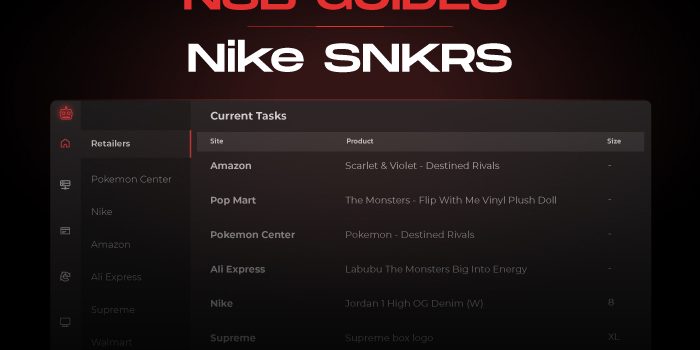
NSB supports any release on SNKRS or Nike.com!
The regions supported so far are US, EU, GS, JP, and KR with plans to expand to further regions in the future.
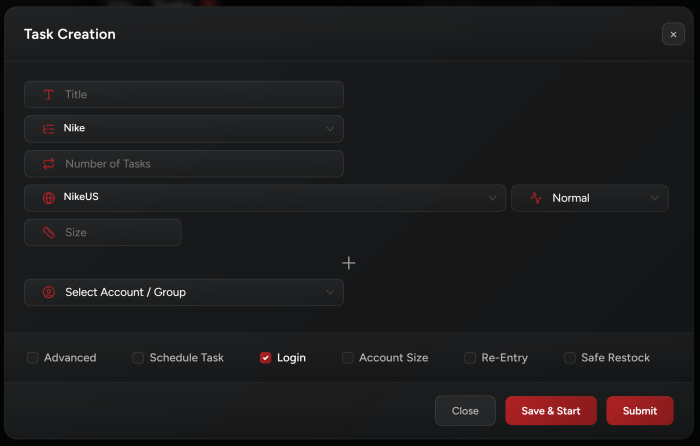
Task Creation
-
Billings Tab:
Import your Nike profiles. You can create a Billing group to include all your profiles in.
-
Proxies Tab:
Create a proxy list for your Nike tasks.
-
Accounts Tab:
Create an accounts group and import your accounts. Make sure to assign a proxy list & billing profile or billing group to your account list.
Check Accounts for the Nike account formats and details.
On creation, the bot will assign your proxies linearly to your accounts. As for billings, it will try to match each billing with the equivalent Nike account, if it didn’t find any matching account, it will assign it linearly to your accounts.
-
Once you have this part set-up, you will have to log in to your accounts. You will notice that a Nike tab will act very similar to a task tab, where you can start every account by clicking the status bar next to it, or you can simply click start all on the left tab to log in to all your accounts.
This will log in, fill the correct billing information on your accounts, save the sessions, and get everything ready for you for a drop.
-
Tasks Tab:
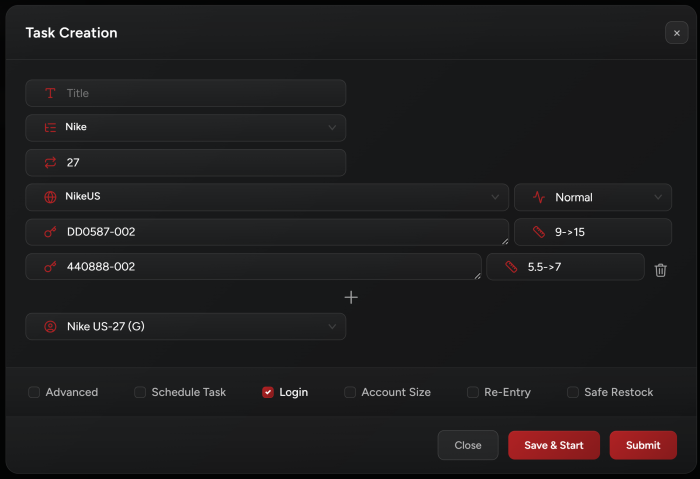
Then go to your Tasks tab to create your Nike tasks and make sure to enter the sneakers SKU in the
Inputfield. You can run Multi SKUs as well.For launches, the
Loginoption should be selected. And you can add any Advanced options, or Schedule your task to Start/Stop at any time, or choose the Re-Entry option if you want your tasks to reenter upon checkout failure.Note: Beware that, for Nike tasks that are using accounts, the Tasks tab will show the billing profile and proxy that are assigned to the account, not the task. If you wish to edit a billing or proxy for those tasks then you can do so in the Accounts tab.
-
Select Mode:
• Normal: Allows you to run your tasks for regular LEO or DAN releases, as well as Nike Flow.
• Shock Drop: Make sure to select this mode for shock drops.
-
Select Size:
Enter one or multiple sizes, or keep the size field empty to select a random size.
Account Size option: Checking this allows you to select the saved preferred size on the account you are using. By doing so, the task will select a size based on your account size preference and not what you have entered in the task size field.
-
Settings Tab:
The module will use browsers. Set your browser limit from your Settings tab based on your hardware specs. You can choose a minimum of 1 browser up to 50 browsers (the default limit is 5).
-
Starting Your Task:
You can start your tasks whenever you are ready. Starting your tasks early will ensure that all your tasks will successfully submit entries. If you don’t have a big number of tasks (a max of 50) you can start your tasks 1 hour before the drop time. Nike tasks will always auto-refresh login if needed.
-
Copped Tab:
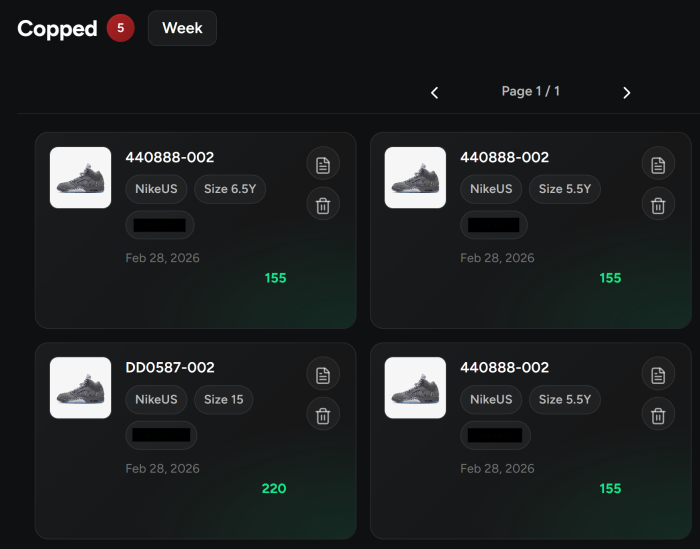
Check your copped sneakers in this tab and share your success!
Advanced Settings
-
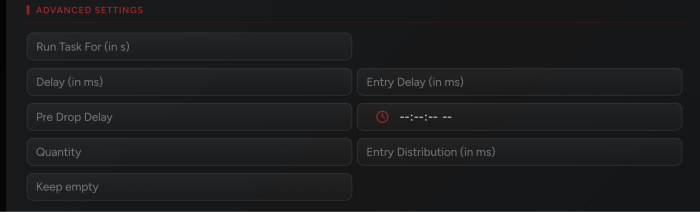
Entry Delay: The amount of time the task will wait before submitting the entry. Let’s say the release starts at
10 AM, if you add an “Entry Delay” of 30,000 ms, then the task will submit the entry at10:00:30. -
Pre Drop Delay: Is the new delay you want to be auto-set closer to drop time.
-
Schedule: (next to Pre Drop Delay) is the time you want the new delay to be set.
-
Entry Distribution: This field is available only on task creation. Let’s say you want a delay of 20,000 seconds between entries, instead of manually filling the entry delay field above, you can simply put the amount of time over which your tasks will be distributed.
For example: If you have 5 tasks and you want them to submit entries in an interval of 100,000 ms (100,000/5 = 20,000). You insert
20,000in this field. In this case, task1 will submit entry at10:00:20, task2 will submit entry at10:00:40, task3 will submit entry at10:01:00, and so on. -
If you hover over a field a text will appear explaining what the field does.
Nike EU Notes
NSB supports Nike EU for AT, BE, CZ, DE, DK, ES, FI, FR, GR, HU, IE, IT, LU, NL, PL, PT, SE, SI, UK.
Nike GS Notes
-
NSB supports Nike GS for AU, BG, CA, CR, ID, MX, MY, NO, NZ, PH, RO, SG, SK, SW, TH, TR, VN, ZA.
-
For Nike GS, when creating the accounts in the Accounts tab, NSB will only login to the account. So make sure to choose “Fill Card” & “Fill Address” after logging into your account. Once you do so, then on checkout, NSB will fill the info of the billing profile assigned to the account before attempting to checkout the item. Otherwise, NSB will skip and use Nike account info.
Note: If the account isn’t prefilled, NSB will also use the billing profile assigned to the account.
-
For FLOW/FCFS drops you MUST SETUP a discord webhook because FLOW checkout is manual: NSB will send you a cart link to your discord webhook.
Multiple SKUs
-
NSB supports running multi-SKU on 1 task!
-
You can create 1 task for each account and include all the SKUs that are dropping on that day in the input field.
-
Multi-SKU will open ONLY ONE browser for ONE of the products, don’t worry about that. It is perfectly normal and on drop time it will submit entries for ALL SKUs.
-
There are 3 ways you can add your multiple SKUs:
1) Enter each SKU in a separate field by clicking the “+”.
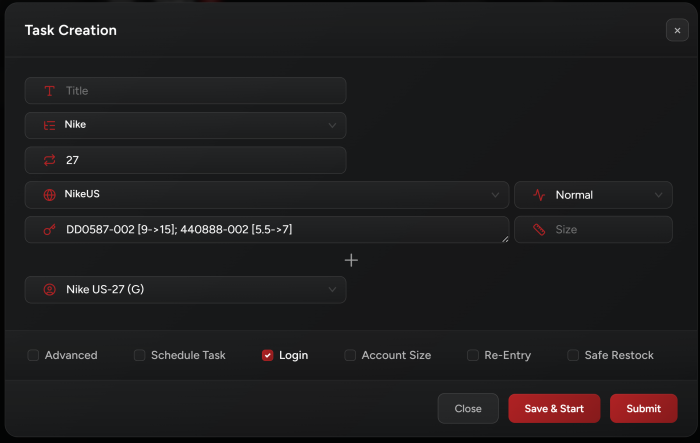
2) Or enter the SKUs separated by a semicolon. For example:
DN9782-001; DX8554-001; DR6952-4003) Or enter each SKU on a separate line in the same field.
-
Specifying sizes in each case:
1) Simply add the size in the individual size fields.
2) You should follow this format when inserting your SKUs:
sku1 [size1, size2]; sku2 [size3, size4]; sku3[size5]3) In the same field, follow this format:
sku1 [size1, size2]
sku2 [size3, size4]
sku3[size5] -
If you are using option 2 or 3, then keep the size field empty the bot will not use its value.
-
You can enter multiple SKUs with empty size option for random sizes.
-
Multiple sizes are separated with
->or with commas (e.g.6->8or6,6.5,7,7.5,8).
Account Options
-
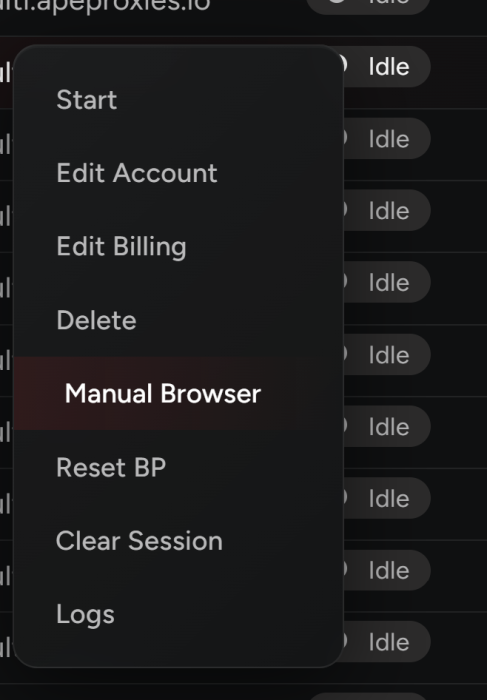
Reset BP:
If you are getting session blocked, refresh your account by using this button. However, use it only once in 12 hours. If you click it and still get session blocked, you need to clear this account session (it’s better to also change the assigned browser), and login to this account again.
-
Fill Address & Card:
When adding your Nike accounts, there are 2 cases, either your accounts are already filled with address & card details and you want to use these info to enter the Leo/Dan releases or you want to fill/overwrite your accounts with your NSB info.
In the first case, you only have to enter the CVV for the card saved for each account. NSB will then only use the account info. But NSB still asks to assign a billing profile. So you need to assign a dummy billing profile to your accounts in this case, NSB won’t use it anyway.
In the second case, when adding your Nike accounts, choose a billing profile (preferably a Billing Group that contains different billing profiles which NSB will assign linearly to your accounts), then click the “Green Start” button, and choose “Fill Address”, and then “Fill Card”.
-
Check Early Access:
Use this to check early access on your accounts. After finishing login, the task will show if this account has EA or not.
-
Check Phone Verification:
Use this to check if the account has a verified phone number. It it doesn’t, you won’t be able to submit an entry using this account.
Release Tips
-
The older your account session is, the better quality this account is, and the higher chances you will get to be selected for a SNKRS win.
-
You may run up to 500 tasks and probably even more. We are pioneering an unprecedented method that aims to give you the highest number of entries possible in the safest way.
-
If a task asks you to log in, go to the account tab and log in to that account again before restarting the task.
-
Some tasks will open browser and keep using it while others will open a browser only on startup and then will continue request mode. In both cases, if for some reason the browser got stuck for a long time on a certain step, you can manually refresh the browser so the task may continue its flow.
-
No need to always login to your accounts in the Accounts tab. One time is enough. Your tasks will auto-refresh login and they will let you know in case an account requires you to manually go to the accounts tab and re-login to it.
-
Safe Restock checkbox is reserved for FLOW releases.
Release Examples
Post Views: 5
