
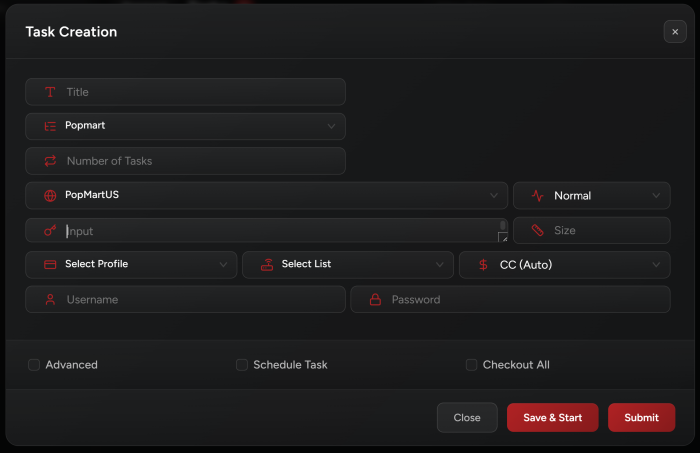
NSB supports the following regions for PopMart:
PopMartAT, PopMartAU, PopMartBE, PopMartBR, PopMartCA, PopMartCZ, PopMartDE, PopMartDK, PopMartES, PopMartFI, PopMartFR, PopMartGB, PopMartGR, PopMartHK, PopMartHR, PopMartID, PopMartIE, PopMartIT, PopMartJP, PopMartKR, PopMartLV, PopMartMY, PopMartNL, PopMartNZ, PopMartPH, PopMartPL, PopMartPT, PopMartSE, PopMartSG, PopMartSI, PopMartTH, PopMartUS.
Task Creation
-
Payment Option:
You may use any of the available payment options (based on your region) when running PopMart tasks including PayPal auto checkout (Which will be using the card saved on your PayPal account).
-
Size:
By default, the task will checkout a whole set. If you want to check out a specific size set, you may enter it in size field.
-
Proxy:
It’s recommended to use 1 proxy per task. Don’t re-use the same proxy on multiple tasks.
-
Accounts:
PopMart requires accounts. Make sure you add your PopMart accounts in the Accounts tab before creating your tasks.
PopMart Modes
-
Normal Mode: The task will use the PID to complete checkout. This mode works on normal products.
-
App: Use this mode if you want to check out an item that’s only available on the App.
-
PopNow: This mode is used for PopNow only products. The task will pick the first available box (if quantity is not set).
-
App PopNow: This mode is used for PopNow-App only products. The task will pick the first available box (if quantity is not set).
-
InStorePickup (PopMartUS only): This mode is used for in store pickup releases. You need to select a store in task creation form.
-
Delete Orders Mode: If you still have items in your cart, you can use this method to remove the items (or remove pending orders).
-
Clear Address Mode: This mode is used to clear the account addresses. Default address won’t be removed.
-
Generator: Explained in detail in Account Generator section below.
Item Monitoring
If an item is upcoming and already loaded on site, you may start your tasks. It will catch the item and sleep till drop time.
However, if the item isn’t loaded yet, the task will show monitoring and keep waiting till the item drops.
PopMart Faq
-
“Getting too popular when running”: Keep task running.
-
“Can I run same account on multiple tasks”: DON’T use the same account on multiple tasks.
-
“Multiple browsers got opened when I started my tasks”: It’s normal, don’t close these browsers and keep them opened.
-
“Task stuck on Waiting for TD”: If NSB opened browsers, it’s normal let it run. You may manually refresh the browsers if tasks got stuck for long time on “Waiting for TD”. However, if no browser was opened, please create a ticket in our discord so we can help.
Account Generator
You can use NSB to register accounts on PopMart. In order to do so, you need emails (Gmail, iCloud, etc…) and a master email to use it as IMAP email.
-
Go to the accounts tab, create an account group, select “other,” and add PopMart accounts:
(You may use same the password for all accounts, its up to you).
-
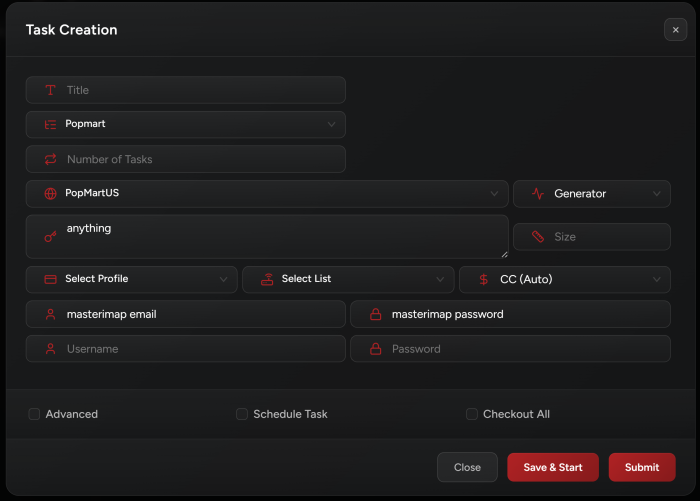
Create PopMart tasks and select “Generator” as mode.
-
Ensure the login checkbox is checked and select the Account group you’ve just created.
-
Enter your IMAP details (use the master Gmail for these emails as IMAP email).
Notes:
-
Put whatever you want in the input field, it won’t be used.
-
Billing profiles don’t have any impact when using generator mode.
-
Better to use proxies when generating accounts.
Post Views: 2
