
Billings – NSB Guide

by thesneakerscroll@gmail.com


Move your mouse over to the Billings tab on the left-hand menu to open it.

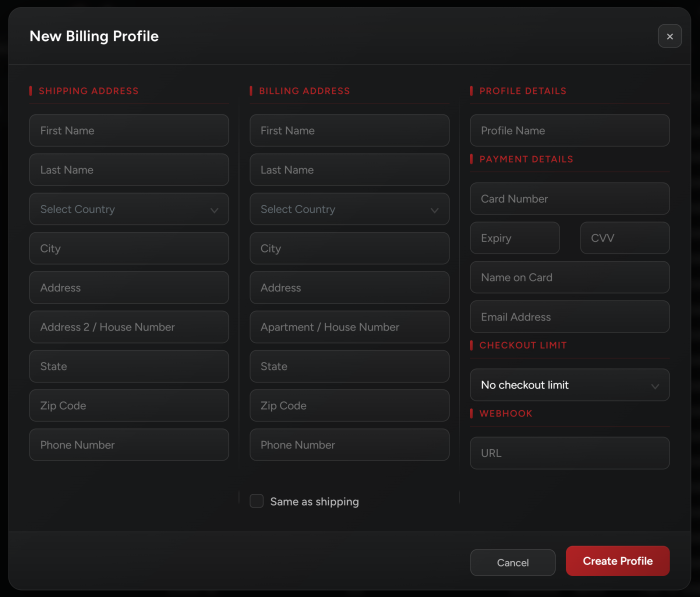
Then go to the top right and click on “+” to add a new billing profile.
 

  • For non-US users: use the state field to type in your non-US state/province.

  • For US users: use the 2 letter abbreviation of your state.

  • Make sure you enter all your details correctly and in their respective fields.

  • Note: If you want to cop multiple pairs of the same item, you will need to use different billing profiles. As in different emails / shipping addresses / credit cards.


Billing Groups

You can create billing groups by selecting your profiles directly from the tab:

Make sure you hit ctrl/cmnd and click on all the profiles you want to include and then click on the “+” icon on the top left so you can name the group.

Once you create a task for this billing group, a new task is created for every profile in that group.


Import/Export Billing

You can import/export billing by either:

Exporting billing from your NSB and then importing them on your new PC/Server.

Importing billing profiles from other bots and into NSB. You may use outside tools such as AYCD to help convert different profile formats to NSB format.


CSV Template

Find below the template to use for data input. Make sure to read the first row for notes on the different fields:

NSB Billing CSV Template


J1gging Your Billing
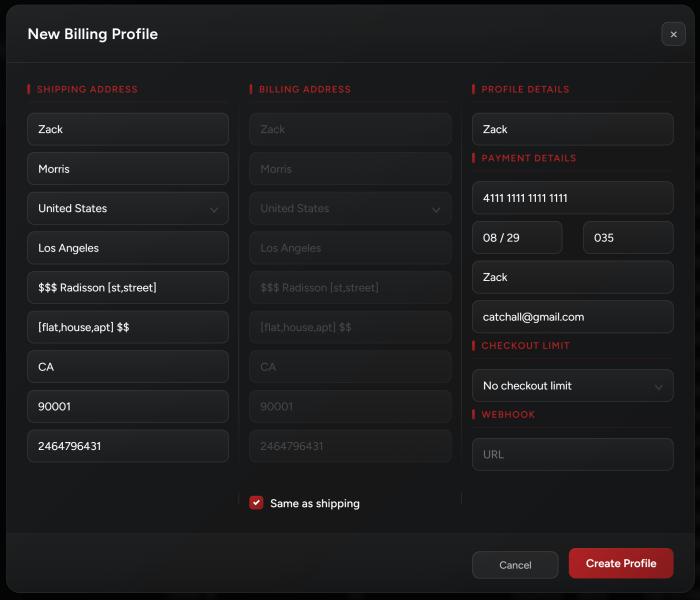
NSB can j!g your Address 1, Address 2, and Email.

  • Address 1 and 2 support the following: Any $ character will be replaced by a number from 0 to 9. Any @ character will be replaced by an alphabetic character. You can add a list of options between [ ] and NSB will randomly choose an option from this list. For example: [Street, strt., st.]

  • Phone Number supports the following: Any $ character will be replaced by a number from 0 to 9.

  • You can use the same format in the CSV file when importing your billing to j1g your addresses.

  • Check the example below for j1gging your Address 1, Address 2, and Email. You can submit the billing as many times as you want to create different billings.


Post Views: 3


You may also like

Leave a Comment