
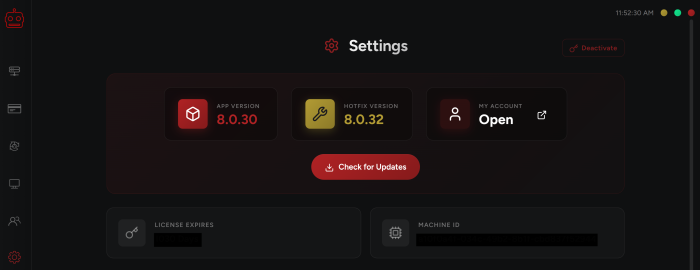
Move your mouse over to the Settings tab on the left-hand menu to open it.
Here you will be able to check your current bot version, license expiry date, machine ID, and you can control specific settings.
Most importantly, you can deactivate your bot from here.
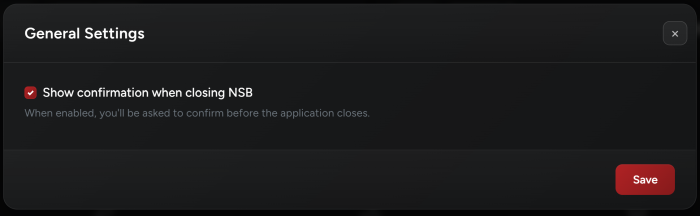
1. General Settings
Here you can choose if you want to receive a notification upon closing NSB.
If you enable it, you will receive the option to confirm termination. This can help you avoid shutting down the bot when you have active tasks.
If you disable it, the bot will close promptly when you close it.

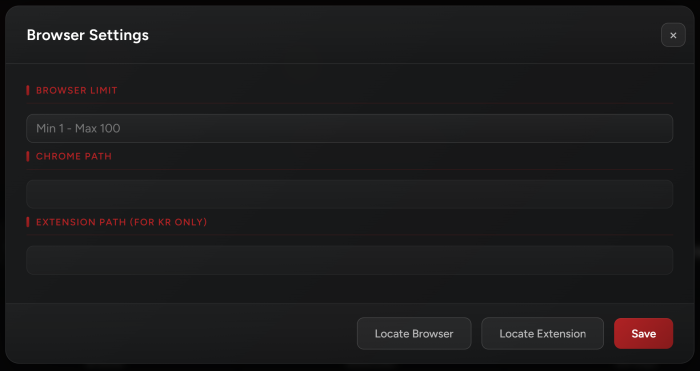
2. Browser Settings
The browser limit allows you to choose a limit for the number of Nike browsers that open at a time based on your PC/server specs.
The default limit is 5 browsers.
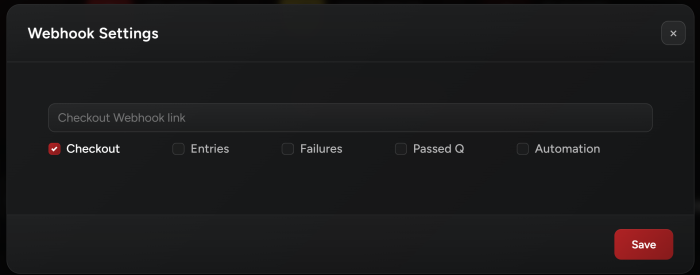
3. Webhook Settings
You can choose to receive notifications for Checkouts, Entries, Failures, Passed Q, and Automation.
It supports Discord & Slack! The bot will send more information to Discord than to Slack. We try to simplify all the info into a one-liner on Slack!
4. API Keys
Here you can add your API keys to run for specific sites.
NSB supports various captcha services for Shopify including 2Captcha, AntiCaptcha, CapMonster, NextCaptcha, and EZCaptcha.
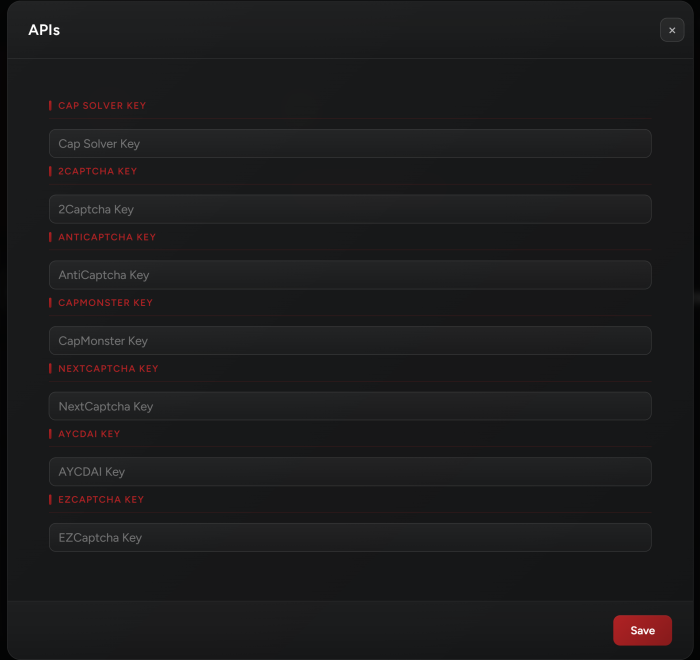
Cap Solver Key:
You can add your API key to run for Shopify or AdidasConfirmed. You can prepare your key by signing up for Capsolver here: https://www.capsolver.com/ and topping up your account with some balance.
AYCDAI Key:
For ReCaptcha AI automated solving, you can either use NSB’s models, or use AYCDs models. Each has their own strengths and weaknesses. We advise to try AYCD at least and see which one works best for you. We have found AYCD to be a bit more accurate!
Make sure to add your AYCDAI key here to assist your bot in autosolving captchas during release. We provide a special AYCD discount in the discord channel #aycd-io.
5. Proxy Settings
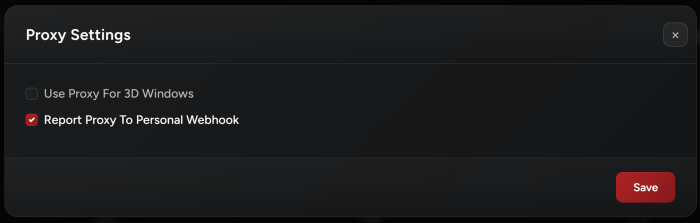
Use Proxy For 3D Windows:
Whenever a task on any site opens a 3D window so you can confirm the payment, you might need to check this button.
By default, this button shouldn’t be checked. If you are facing issues with 3D (e.g. window not loading), click this button, it might help you with 3D windows.
Report Proxy To Personal Webhook:
You may choose to skip reporting the proxy to Discord/Slack webhooks. It is automatically enabled.
6. My Shopify Sites
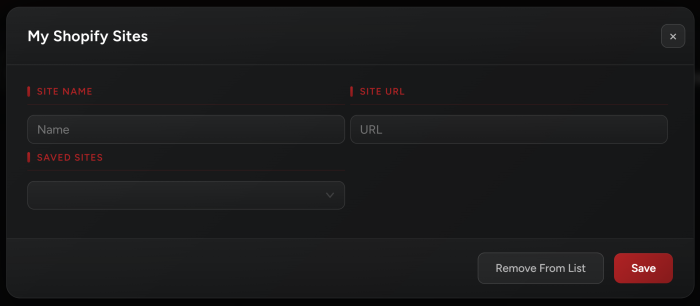
You may add your own Custom Shopify sites here. In this case, the Shopify site will be saved to your NSB and you will be able to create tasks using your sites in the Task’s tab.
7. Captcha Settings
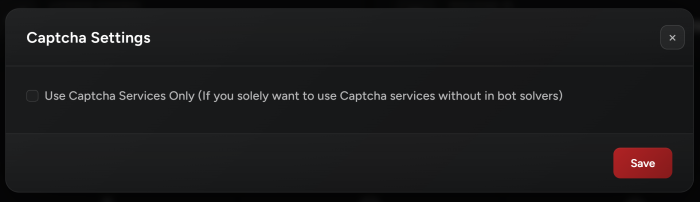
Enabling the “Use Captcha Services Only” will prevent NSB from opening its own solvers and will rely solely on the 3rd captcha services.
8. Export
When exporting, the files will be copied to your desktop under a folder named “NSB Files”.

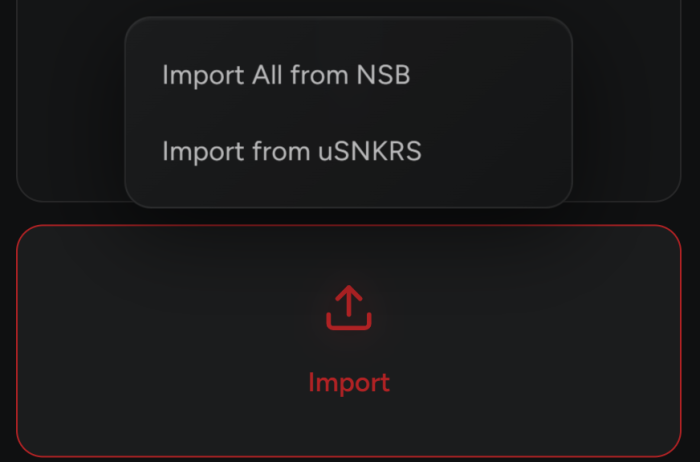
9. Import
Import All from NSB:
When importing, NSB will OVERWRITE the current setup with all the info in the files imported.
Import from uSNKRS:
If you still have your uSNKRS setup, you may import it into NSB by using this icon.
-
Import from uSNKRS will only work if you have a uSNKRS installation on the same machine.
-
It will automatically import proxies, billing profiles, accounts, and account sessions.
-
Account sessions will persist, and you will NOT need to provide OTP for login on NSB. Do login though to confirm the import worked.
-
Imported accounts will always automatically be set to NikeUS as site / US region. Make sure to mass edit site on newly imported accounts tab to the correct region.
10. Deactivate
Click on the Deactivate button in the top right in order to deactivate your NSB bot and install it (activate it) on another PC/Server.
If you forget to deactivate your bot and crashed your server or experienced any problems, just send a DM to @NSB bot on discord with this format: !reset

Post Views: 3
