
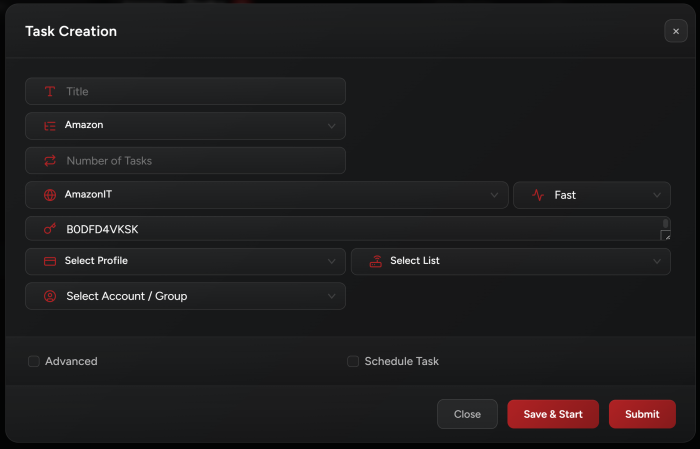
NSB supports the following regions for Amazon:
AmazonUS, AmazonES, AmazonUK, AmazonIT, AmazonDE, AmazonCA, AmazonFR, AmazonJP, AmazonPL, AmazonAU, AmazonNL, AmazonMX.
Task Creation
- You need accounts to run Amazon.
- Make sure to create an Amazon account group in Accounts tab to add your Amazon accounts.
- Make sure to check Account Setup for more detailed info.
NSB will use account’s saved info (address and card) to checkout. Thus, you can’t select a billing profile when creating Amazon tasks.
Advanced Settings
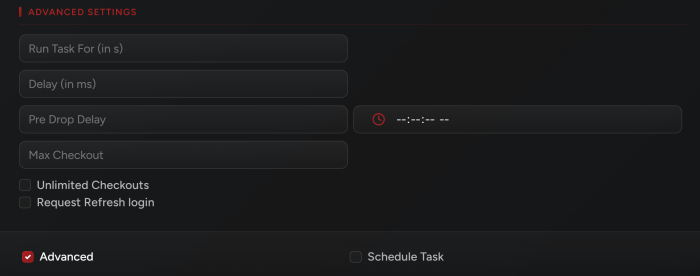
In addition to the common advanced settings found for almost all sites, you will notice 3 extra advanced options for Amazon:
-
Max Checkout: You can enter the number of checkouts after which this task will stop. For example, if you add: “5”, the task will stop after checking out 5 times.
-
Unlimited Checkouts: When ticked, task won’t stop until you manually stop it.
-
Request Refresh Login: Recommended to keep it unchecked as it might cause account soft ban.
Amazon Modes
-
Monitor Mode:
• Task running this mode will keep monitoring for item (ASIN) restock. You need to have at least 1 monitor task per ASIN and Offer Id.
• Delay should be at least 6000ms.
• You may create multiple monitors tasks for each ASIN and Offer ID.
• You can add only 1 Asin and 1 Offer ID per monitor task.
-
Monitor2 Mode:
• Task running this mode will keep monitoring for item (ASIN) restock. You need to have at least 1 monitor task per ASIN and Offer Id.
• Delay should be at least 6000ms.
• You may create multiple monitors tasks for each ASIN and Offer ID.
• You can add only 1 Asin and 1 Offer ID per monitor task.
-
MonitorFast Mode:
• Task running this mode will keep monitoring for item (ASIN) restock. You need to have at least 1 monitor task per ASIN and Offer Id.
• Delay should be at least 6000ms.
• You may create multiple monitors tasks for each ASIN and Offer ID.
• You can add only 1 Asin and 1 Offer ID per monitor task.
• Proxy is more likely to be blocked when using this mode.
-
MonitorAsin Mode:
• Task running this mode will keep monitoring for item (ASIN) restock. You need to have at least 1 monitor task per ASIN (no need to use an offer ID for this mode).
• Delay should be at least 6000ms.
• You may create multiple monitors tasks for each ASIN and Offer ID.
• You can add only 1 Asin and 1 Offer ID per monitor task.
-
Fast Mode:
• In order to checkout restocks, alongside Monitor tasks, you need to create fast and turbo tasks.
• This is the default checkout mode to use on Amazon.
-
SPAM ATC:
• This mode will spam the website in attempts to add to cart and checkout.
• Might cause proxy and/or account block ~ risky mode.
-
Turbo Mode:
• You may create some tasks with Turbo mode.
• If it works, task should checkout faster when running this mode. • This mode won’t work for all accounts.
-
SubmitInvitation Mode (Raffle):
• This mode is used to run tasks on items that are raffle based.
• You need to put the item Asin and select an account.
-
Fill Address Mode:
• This mode will only save an address to your account.
• It will use the billing profile info assigned to task.
Note: Which monitor mode to use?
It's recommended to create a combination of all modes for a single ASIN.
If you would like to receive a discord webhook notification every time a monitor task catches one of the Asins you are monitoring, go to the Settings tab, click the gear icon in top right corner, check “Automation” checkbox and add your discord webhook URL there.
More info here: Settings.
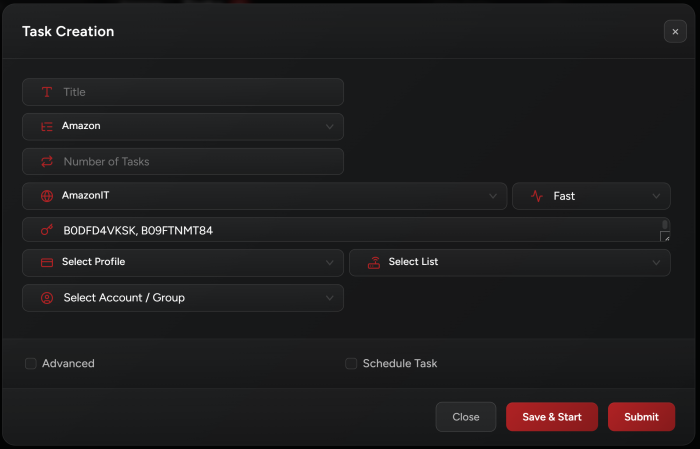
Multiple Asins
-
You may add multiple Asins per single
FastorTurbomode task. -
Don’t use it for
Monitortasks. -
NSB will start a task on any of these Asins once a monitor task fires.
Restocks Tips
-
Use high quality ISPs or DCs.
-
Focus on Fast mode while also running some Turbo mode tasks.
Account Setup
-
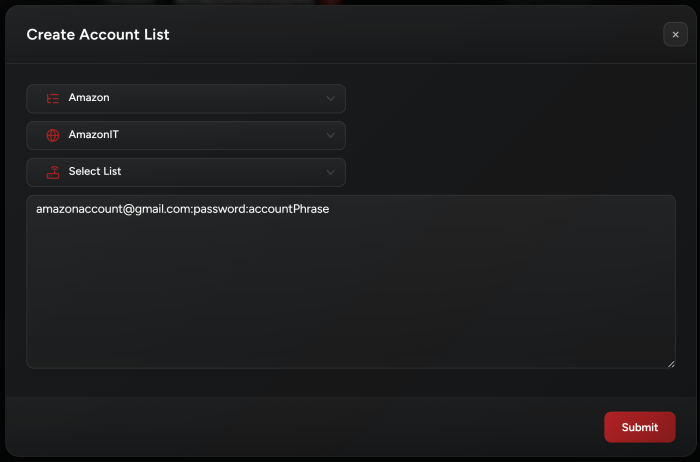
Add your accounts by providing email, password, and account phrase.
-
Select site, tab, and proxy list.
-
NSB will use account’s saved info (address and card) to checkout. Thus, you can’t select a billing profile when adding Amazon accounts.
Note: NSB doesn't support using Amazon business accounts.
Once you add your account(s), make sure to click on start in order to login to your accounts in NSB. An automated browser will open where it will login to your accounts.
DO NOT close the browser even after the account shows “Ready!”.
Note: NSB won’t auto close the browser.
Post Views: 6
