
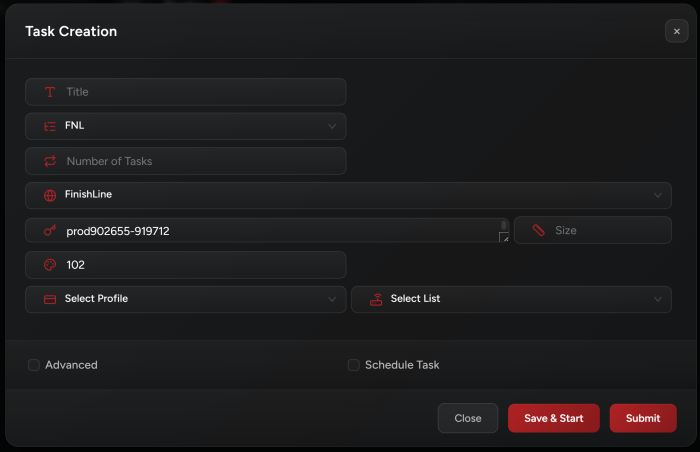
Task Creation
-
Choose FinishLine / JDSports from the sitelist.
-
Input:
• When creating a FNL/JDS task, you needs to enter 3 things: ProductID, StyleID, and ColorID.
For example: https://www.finishline.com/store/product/air-jordan-retro-11-low-ie-basketball-shoes/prod902655?styleId=919712&colorId=102
For this item, the ProductID is:
prod902655(you may skip addingprodNSB will handle it), StyleID is919712(same as SKU for Nike), and the ColorID is102.• You may also simply use the link as an input instead.
-
Select your Size:
• Multiple sizing is supported. Multiple sizes are separated with
->or with commas (e.g.6->8or6,6.5,7,7.5,8).• You can also use
FA(First Available),LA(Last Available) orRA(Random). -
Proxies:
Make sure to use Residential Proxies for FNL/JD tasks.
-
Click Advanced to enter Delays (keep them at default unless we provide other instructions).
-
Captcha Solving:
• FNL/JDS module requires V3 Captcha Solving. Therefore it’s better to have very good Gmails and to create multiple solvers especially when running many tasks.
• FNL/JDS module supports CapSolver captcha solving (you would need a key and the bot will do the rest).
• If the Capsolver key is found, NSB will try to solve captchas using both the local solver and CapSolver at the same time, and then it will take the first received Captcha token. Otherwise, it will only use local solver.
• Captcha is required on multiple steps, not just ATC.
-
Starting Your Task:
Start tasks once queue is live on the site.
Release Tips
-
Using CapSolver gives the best chance to get high quality solves and passes.
-
NSB solver will only pass with very high quality Gmails that are farmed, CapSolver is always passing and is cheap & fast to run.
The post Finishline / JDSports – NSB Guide first appeared on .
